
How to run Qme: from scan to pickup
How Qme works in your branch, step by step.
Screenshots of the real Qme interface, with demo data for a made-up café.
Last updated: 2 November 2026
Before your first guest
- Sign up and add your branch on the sign-up page, and choose a staff code of 6 to 10 digits.
- Open the team board on a tablet or phone at the counter, and sign in with the staff code.
- Print the counter stand in A6 from the board menu, and place it beside the till, facing the guest.
- Try the Practice run from the board menu with your team before your first guest.
- The hall screen is optional: open it from the team board on any screen with a browser.
Step by step
The guest scans the code
The guest scans the counter code with their phone camera and your branch’s page opens, with no app. They type their bill number and tap Get my number. If the team shows them an order code, they scan it and don’t need to type anything.
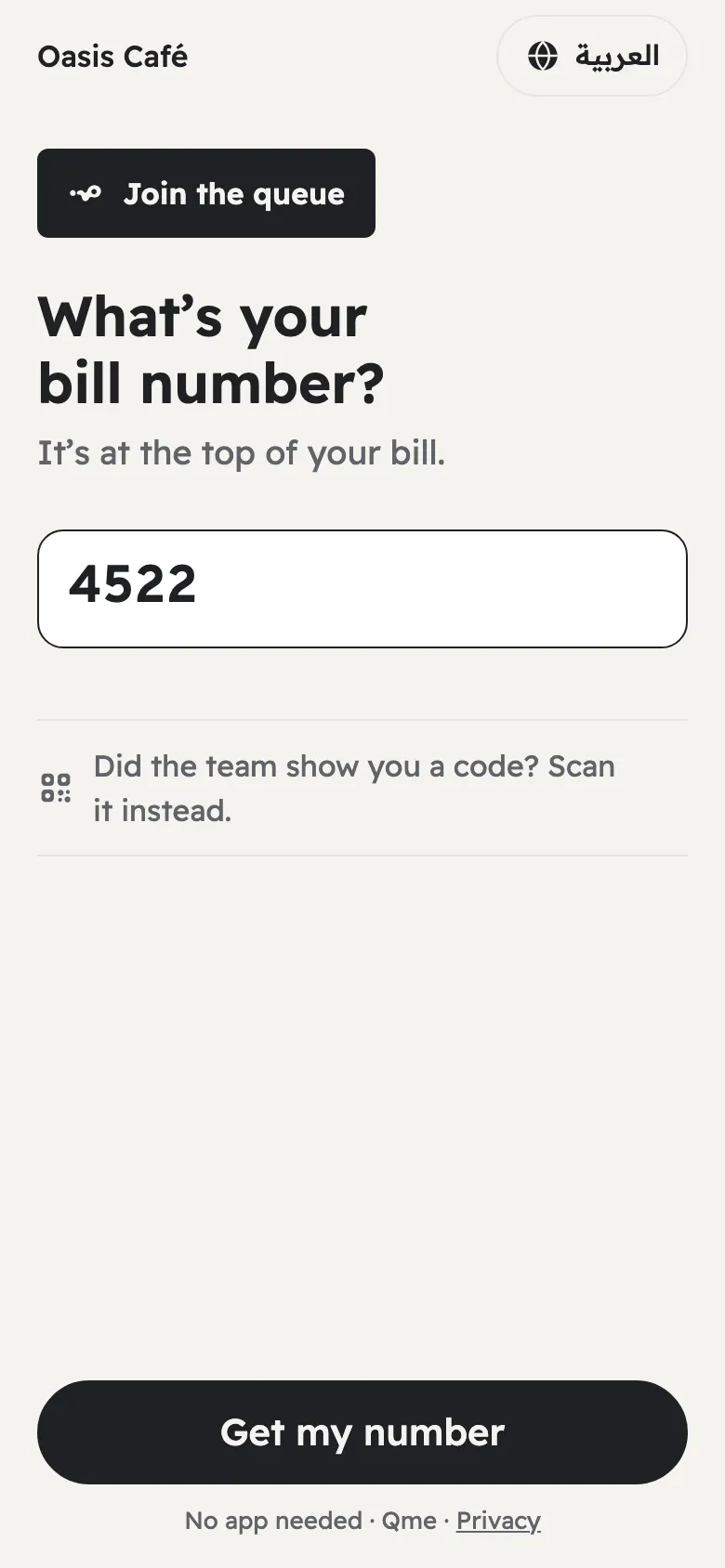
The join page The guest waits in comfort
The guest sees a page with their number and the status Preparing. It updates by itself while it is open, and they can turn on phone alerts with the button at the bottom.
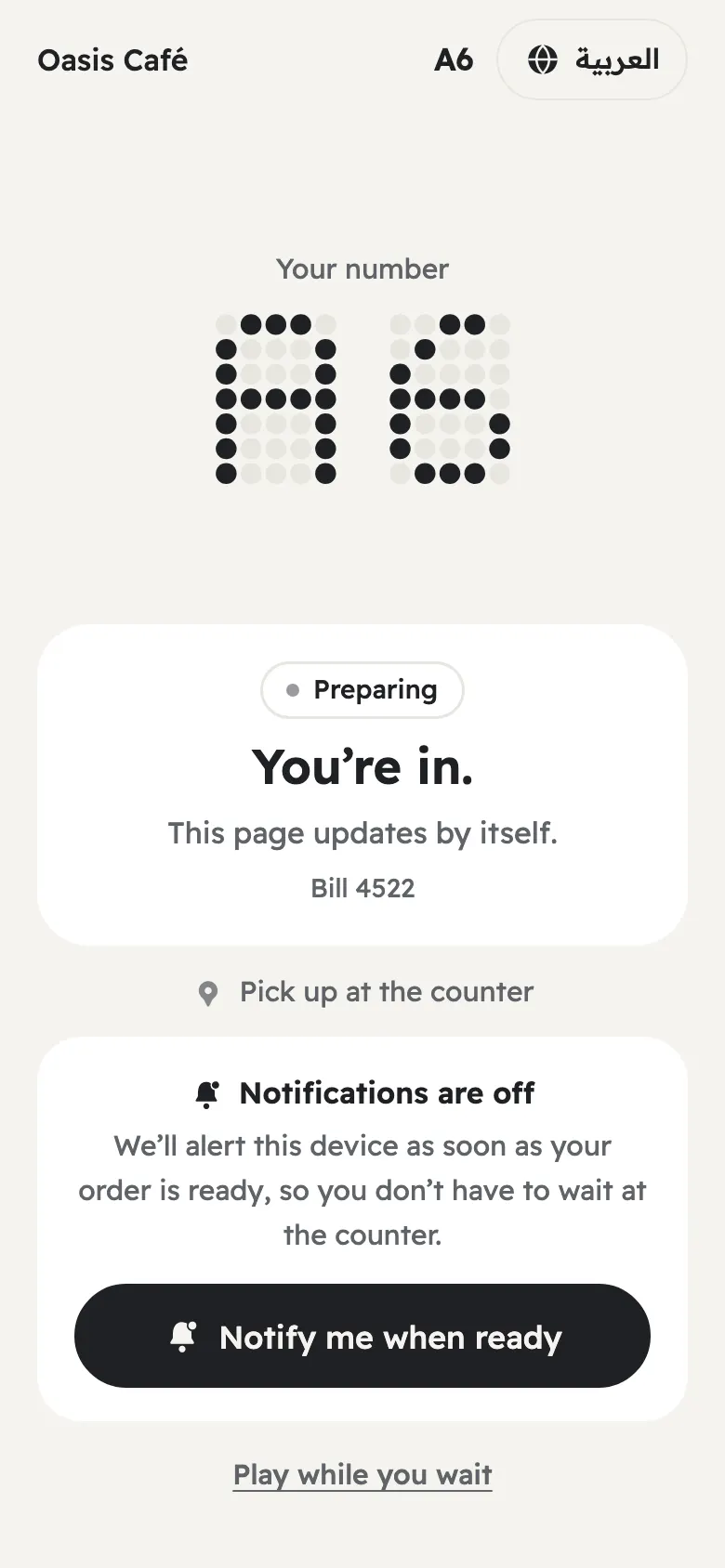
The guest page while preparing The team follows every order
Orders appear under Preparing on the team board, with each guest’s number and the time since the order. The board marks guests without alerts with “No alerts, call out”, and late orders with “Late”.
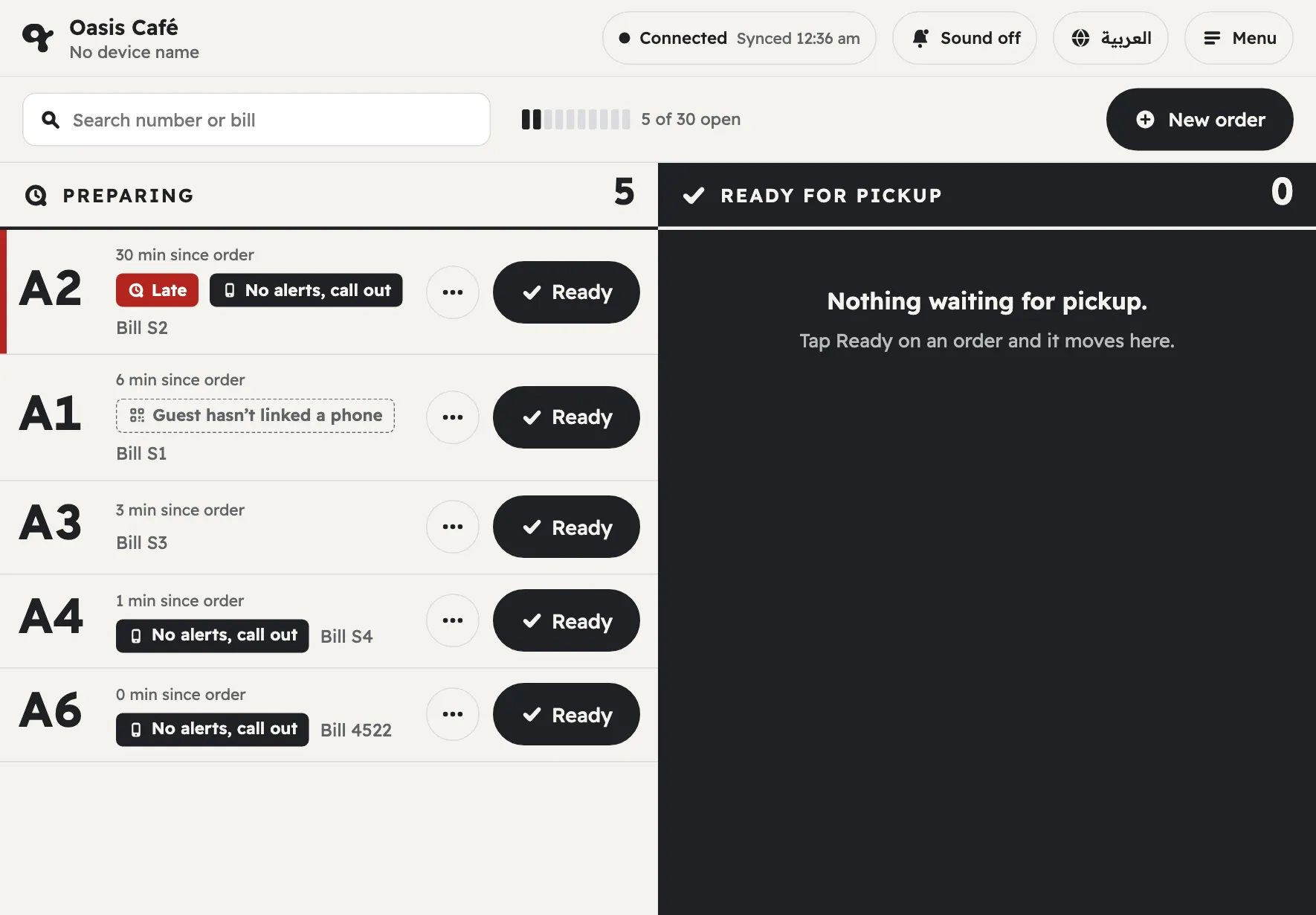
The team board The team taps Ready
The moment the order is ready, the team taps Ready. The guest’s page changes to “It’s your turn”, and we send them an alert if they turned alerts on. If they didn’t, the team calls their number.
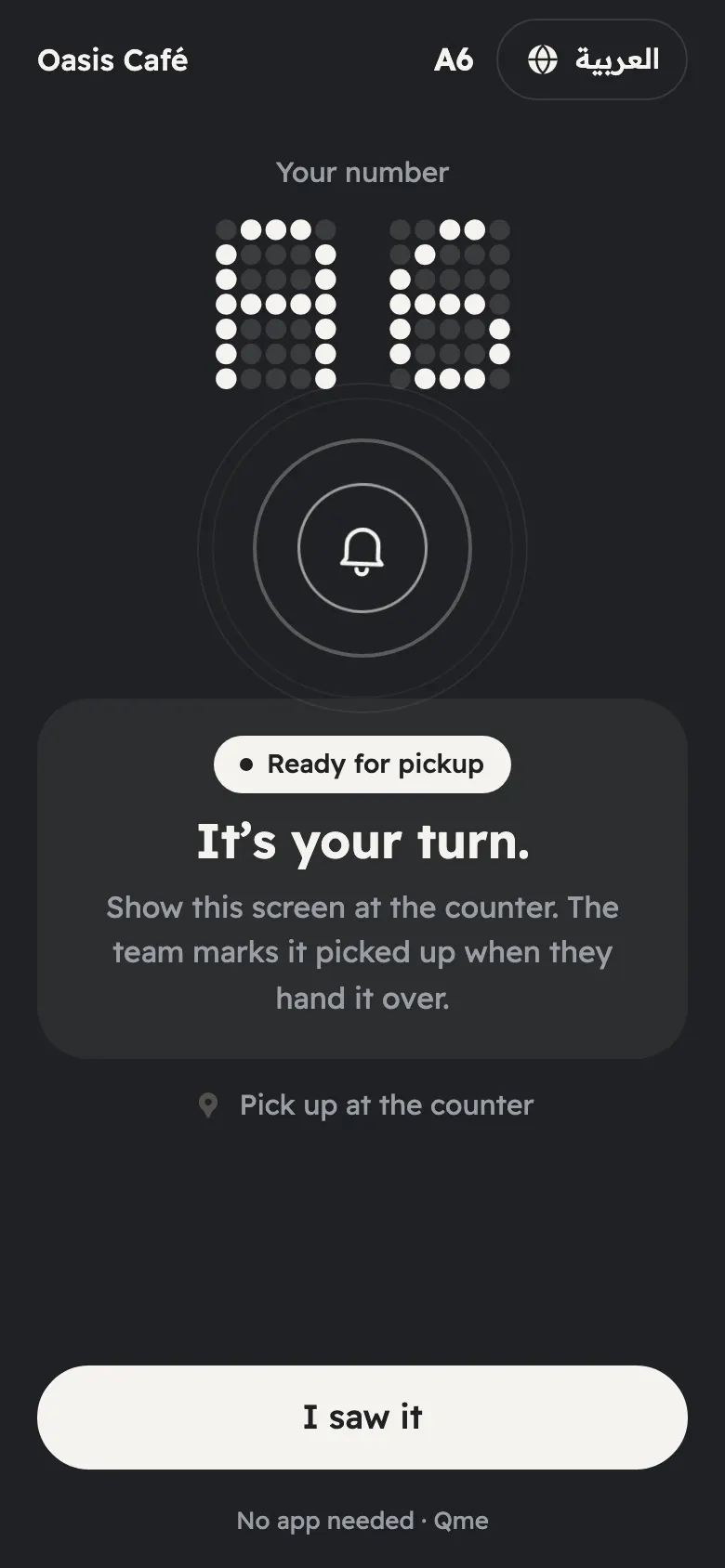
The guest page when ready The guest picks up
The guest shows their screen at the counter and the team taps Picked up. The page thanks them and invites them to rate the visit.
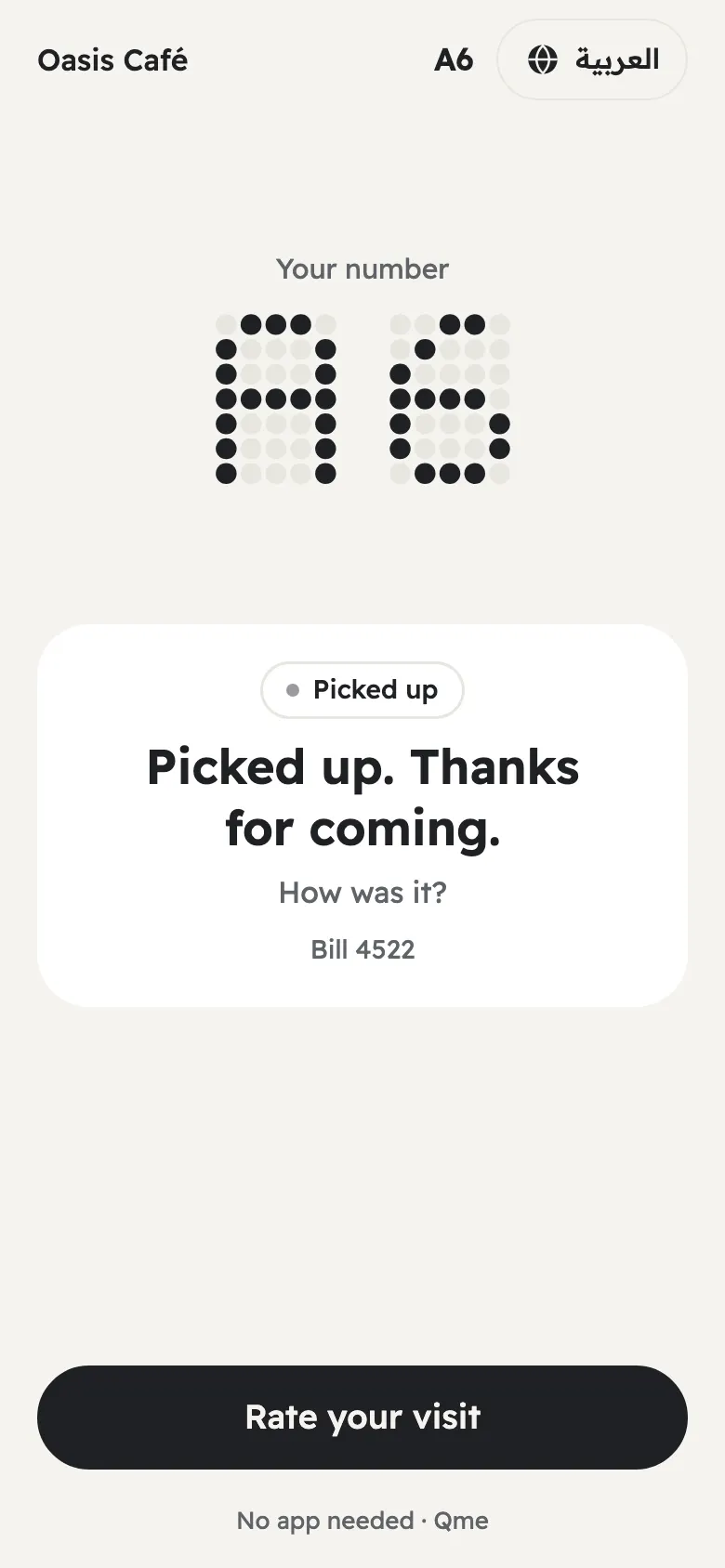
The guest page after pickup
Tips for the team
- Tapped by mistake? Tap Undo in the message that appears on the board within a few seconds. An alert can’t be taken back once it is sent.
- A guest without a phone? Tap New order to give them a number, then call it out. The hall screen shows ready numbers to everyone.
- Lost the connection? The buttons pause and the board shows a message, and no tap is saved until the connection is back. Keep a way to call guests by voice.
- Looking for an order? Type the guest’s number or the bill number in the search box.
What to tell guests
One sentence is enough: “Scan the code, type your bill number, and follow your order on your phone.”
Try it in your branch
Start with one branch at your busiest time, on your team’s own devices.
Try free for 3 daysCompare with pagers
Need help? Write to qme@waystudio.net or message us on WhatsApp.